

Search, collaborate/communicate inside each listing, and request showings at any time
Preview Videos: Not only do Brian’s buyers receive the benefits of the Compass app’s reliable search and communication features, but Brian also makes customized preview videos of homes you are interested in, that only you can see, these videos will be sent to you inside of the Compass App
Important Set-up Instructions
Download COMPASS app
Accept Brian’s Collection invitation via email after our initial chat. When saving homes, be sure to save them to the shared collection, so that Brian can collaborate with you.
Adjust notifications in settings to Brian’s recommended settings, by following the video steps - to ensure you don’t miss messages from Brian
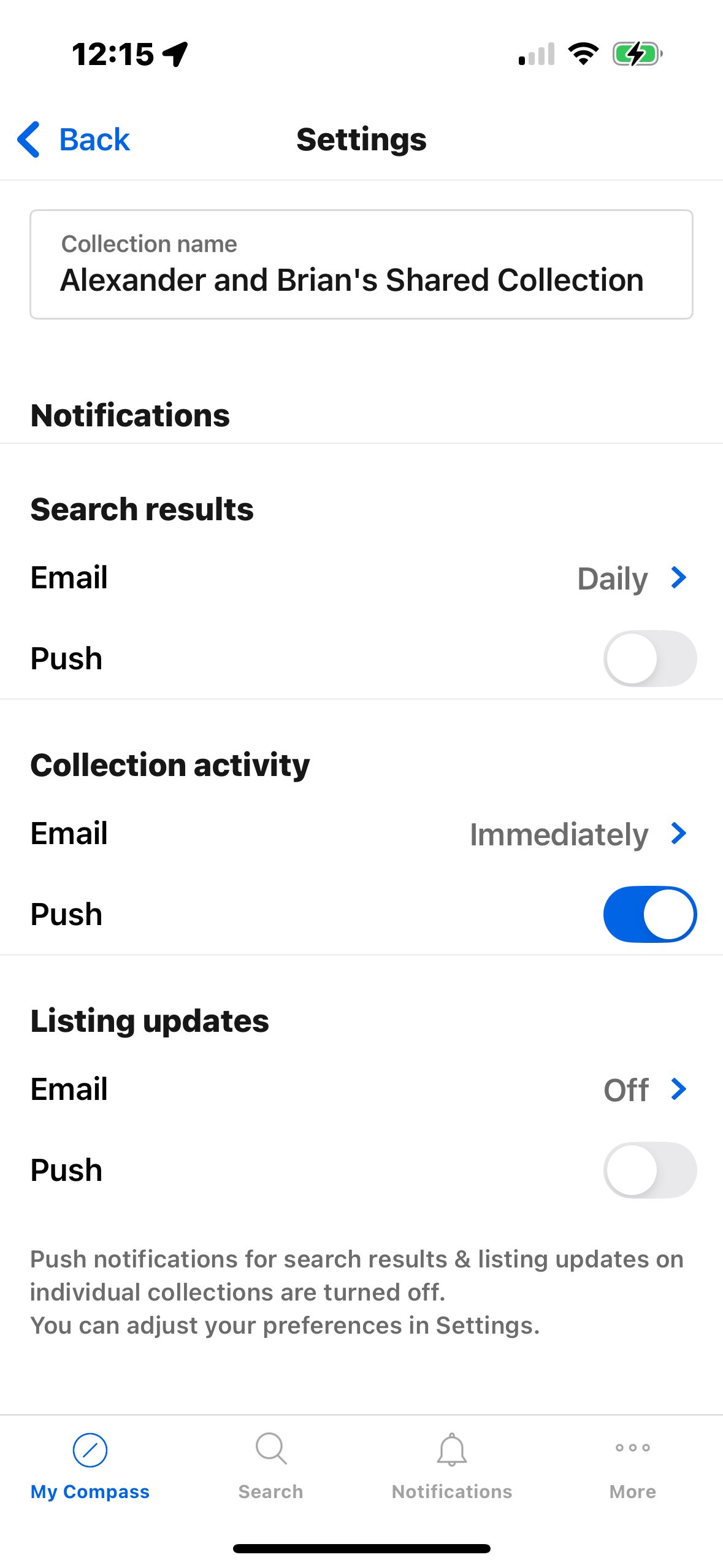
How to edit your mobile app notifications via desktop:
Sign in To Client Account
Navigate to The drop-down menu from the profile icon on the top right most side of the interface
Click on Notifications from the drop-down menu
Click Mobile Push
Edit as you may need
How to edit your mobile app notifications via mobile app:
Open Compass App.
Navigate to notifications on the bottom menu of the mobile screen.
Navigate to settings in the top right corner of the screen.
Tap on Push.
Tap on Collections.
Edit as you may.


Using your Compass App
Add homes to our shared collection which then can be seen by the other parties of that collection
Enter any comments (including notes and questions) into each listing. We can reply and chat inside each listing to keep our thoughts organized per listing
Look out for google drive links in a listing’s comments - that is how Brian uploads important listing docs and preview videos he took for you!

